
Use a mobile-first field service form that includes the 12 essential work-order fields and offline sync. That combination saves admin time, speeds up billing, and cuts down on payment disputes. If you’re still running paper or static PDFs, the fastest fix is to adopt a template with those core fields, then trial a builder that works without signal in the field.
TL;DR:
- Using a mobile-first form with offline sync and the 12 essential work-order fields can significantly reduce admin time, billing delays, and payment disputes.
- Start with simple, job-specific templates like intake, work order, and completion sign-off, adding conditional logic and pick-lists to improve accuracy and usability.
- Choose form software that offers reliable offline mode, native photo and signature capture, easy data export, and seamless integration with CRM, invoicing, and asset systems.
- Pilot the new form process on high-volume, slow-signal job sites for at least seven days to measure completion rates, speed of payment, and dispute reduction.
- Implement a unified workflow that automates contract generation, signatures, and payments directly from the form to speed up job approval and cash flow.
Table of Contents
- The 12 essential fields every field service form should capture
- Common templates and when to use them
- How to choose form software: evaluation checklist and vendor questions
- How to build and customise practical field forms
- Mobile, offline and integration considerations
- Practical examples: three short sample templates you can adapt
- Why a form-native contract and signature workflow speeds approvals
- One practical habit worth adopting now
- Try Ksign: how to pilot the form-to-payment workflow
- Sources
The 12 essential fields every field service form should capture
A field service form is only as good as its structure. Miss a field and you’re chasing information after the job’s done, usually by phone, usually at the worst time.
A comprehensive work order typically includes 12 essential fields: customer and site details, service type, scheduling, reported issue, diagnosis, work performed, parts used, labour hours and rates, total cost, technician signature, and customer signature.
Each one earns its place:
- Customer and site details anchor the job to a location and a contact, which matters when three properties look identical from the truck.
- Service type sorts the job for reporting and recurring maintenance scheduling.
- Scheduling (date, arrival window, duration) supports SLA tracking.
- Reported issue captures what the customer said, in their words, before diagnosis skews it.
- Diagnosis records what the technician actually found on site.
- Work performed is the line-by-line record that justifies the invoice.
- Parts used ties stock movement to the job and protects warranty claims.
- Labour hours and rates feed billing directly.
- Total cost should calculate, not get typed twice.
- Technician and customer signatures close the loop and create accountability.
A free-text box that says “fixed the unit” tells you nothing six months later when a warranty dispute lands. A structured field with parts used, labour hours, and a signature tells the whole story on its own.
Common templates and when to use them
Different jobs call for different structures, not one bloated form trying to do everything.
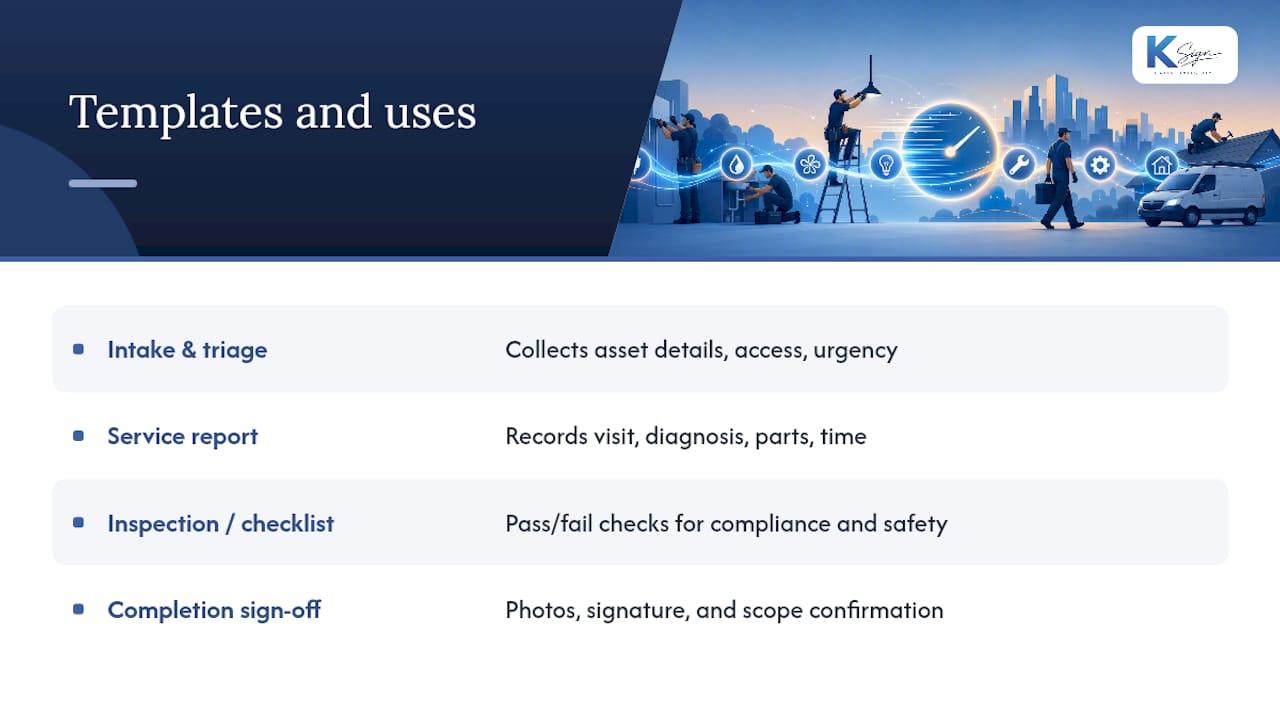
Intake and triage forms collect asset details, site access notes, and urgency before a technician is even assigned. Well-built intake forms reduce dispatch follow-up calls because the office already knows what’s needed before the van leaves.
Service report or work order templates are the workhorse. They capture the visit, the diagnosis, the parts, and the time on site, so the record supports billing, warranty checks, and SLA reviews without a second call to the technician.
Inspection or checklist templates use a pass/fail matrix across a fixed list of items, common for compliance audits, safety checks, and preventive maintenance rounds.
Completion sign-off templates capture the final evidence: photos of finished work, a customer signature, and confirmation the job matches the original scope. Template libraries from vendors like Formstack show how these four types get reused across trades, from HVAC to pest control.
How to choose form software: evaluation checklist and vendor questions
Trialling software is where operational risk actually shows up, not in the sales demo. Run every candidate through this checklist before committing:
- Mobile web access — does it work in a browser, or does it force an app install every technician has to manage?
- Offline sync — can a technician fill out a job in a dead zone and have it sync automatically later?
- Photo and signature capture — native, not bolted on as an afterthought.
- Conditional logic — fields that appear only when relevant, not forty optional boxes.
- PDF export — for customers who still want a printable record.
- Integrations — CRM, invoicing, and asset records, not a manual CSV export every Friday.
- Data ownership — can you export everything if you leave the platform?
Ask vendors directly: what happens to a form filled out with no connectivity? How long does sync take once signal returns? Who owns the exported data, and in what format?
Red flags worth walking away from: no offline mode, no clear data export path, or a “custom integration required” answer to a basic CRM sync question.
Pro Tip: Run the trial with your worst-signal job site, not your office Wi-Fi. That’s where a form builder either proves itself or falls apart.
How to build and customise practical field forms
Converting a paper form into something field-ready doesn’t need a developer, just a sensible sequence.
- Start narrow. Pick one job type and build the essential fields first, not every field you might one day need.
- Add conditional logic before adding more fields. If “warranty claim” is ticked, show the warranty fields. Otherwise, hide them.
- Use pick-lists for parts and labour codes rather than free text, so the entries match your billing system exactly.
- Enforce signatures and photos where they matter. Make the form uncompletable without them on job types where evidence disputes are common.
- Test on an actual device, in flight mode. Oracle’s field service documentation is a useful reference for how platforms structure form-building steps, but the real test is your own technician’s phone with the signal switched off.
Mobile, offline and integration considerations
A form is worthless if it disappears when the signal drops. Teams working in poor-connectivity areas need software that stores entries locally on the device and syncs automatically once a connection returns, no manual resend, no lost job.
GPS, timestamps, and photo metadata matter more than they look. Photo and location metadata becomes the deciding evidence in warranty disputes and insurance claims, where “he said, she said” otherwise wins.
Integration points to check before you commit:
- CRM sync, so job history follows the customer record
- Invoicing, so approved forms generate a bill without rekeying
- CMMS or asset records, so service history attaches to the equipment, not just the job
- Export options: CSV for spreadsheets, webhook or API for anything custom
Digital forms that attach photos, signatures, and time entries directly to a job record cut re-keying and speed up invoicing compared with static PDFs sitting in an inbox.
Practical examples: three short sample templates you can adapt
These skeletons are deliberately minimal. Add fields only once you’ve proven the core version works.
- Intake/triage: customer name, site address, asset ID, reported issue, urgency, preferred window. Optional: photo of the fault, access instructions.
- Work order/service report: job ID, technician, arrival/departure time, diagnosis, work performed, parts used (pick-list), labour hours, total cost, signatures. Conditional trigger: if “return visit required,” show a follow-up date field.
- Completion sign-off: job ID reference, before/after photos, customer signature, satisfaction confirmation. This is also where a change order template helps if the scope shifted mid-job.
Export completed forms as PDF for the customer, and push the structured data straight into invoicing so nothing gets typed twice with professional general contractor signs for new construction to keep your sites branded and compliant.
Why a form-native contract and signature workflow speeds approvals
Most field service businesses run three disconnected tools: a form, a contract template, and a separate payment link. That gap is where jobs stall.
A form-native workflow collects the customer’s answers, uses them to auto-generate the service agreement or contract, sends it for signature, and takes a deposit in the same flow. No copy-pasting answers into a Word document at 9pm.
A sensible pilot: pick one job type, build one template, and measure two things over 30 days:
- Time from job completion to payment received
- Number of billing disputes tied to missing evidence or unclear scope
Features worth checking for in this kind of workflow: auto-generated contracts from form data, mobile-first templates, hybrid PDF and web-form envelopes, and payments collected at the point of signing.
Pro Tip: Measure the pilot against your slowest-paying job type, not your easiest. That’s where a form-to-contract-to-payment flow proves its worth fastest.
One practical habit worth adopting now
The most common mistake I see is overloading a form with optional free-text fields “just in case.” It feels thorough. It’s actually where compliance drops off, because technicians skip anything that isn’t required.
The better habit: start with the required core fields only, layer in conditional logic for edge cases, and run a genuine 7-day field pilot before rolling a template out wide. Watch completion rates, not just intentions.
— Josh
Try Ksign: how to pilot the form-to-payment workflow
This article highlights the benefit of having the form, the contract, the signature, and the payment in one flow instead of four separate tools. Answers a customer gives on a mobile-first form can auto-generate the service contract directly, then move straight into e-signature and an embedded payment for the deposit, without anyone retyping a single field.

A sensible way to start: build one web form for your highest-volume job type, connect it to a contract template, and add a deposit collection step. Run it for a month and track how much faster payment lands compared with your current paper or PDF process. If the scope changes mid-job, a hybrid envelope handles both the signed document and the follow-up form without starting over. Start a trial with Ksign and test the workflow on your next job.
Sources
For readers who want to look at real examples before building their own, these are worth a direct look: