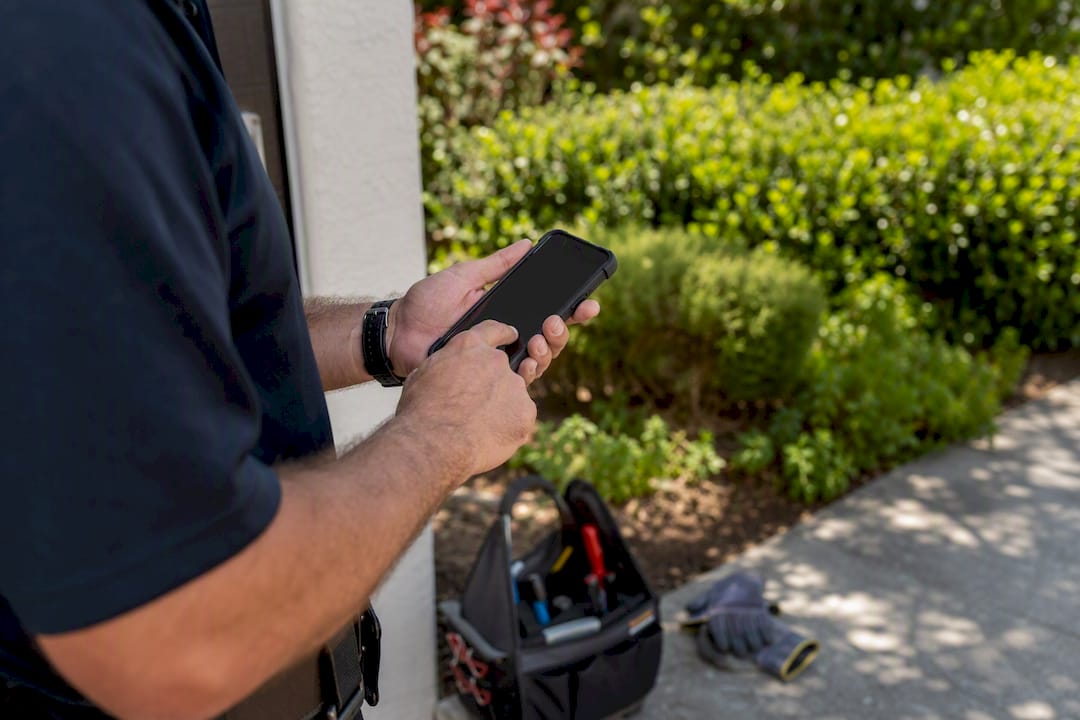
A mobile-first e-signature workflow is the right choice for most individuals and small businesses, and it holds up legally when the platform records signer intent, consent, and a tamper-evident audit trail. We recommend Ksign as the strongest mobile-first option for trades, field services, and other small operators who need contracts signed and paid for on the spot, though a quick native signature still does the job for a one-off, low-stakes document.
Here’s why a dedicated mobile e-signature app usually beats the alternative:
- Signing happens where the work happens, on the customer’s doorstep or job site, not back at a desk.
- An audit trail records who signed, when, and from where, which protects you if a signature is ever disputed.
- Payment collection can sit inside the same signing flow, so deposits land the moment a quote gets approved.
If you only need one quick signature on a one-off letter, your phone’s built-in Markup tool is fine. Once you’re sending contracts, quotes, or waivers more than a few times a month, a purpose-built app pays for itself.
Key Takeaways
A mobile-first e-signature workflow works best when it pairs an audit trail and signer authentication with a form-to-contract-to-payment flow built for small business use.
| Point | Details |
|---|---|
| Native tools suit simple jobs | Use Apple Markup or Android’s built-in signing for a single, low-stakes signature only. |
| Audit trails aren’t optional | A tamper-evident log of who signed, when, and how is what makes a mobile signature enforceable. |
| Match pricing to volume | Flat-fee small-business plans usually beat per-envelope pricing once you’re sending contracts weekly. |
| Test before rolling out | Send yourself a document first to catch signature placement or offline sync issues before customers do. |
| Ksign bundles the whole workflow | Ksign combines guided forms, contract generation, mobile signing, and payment collection for small business and field teams. |
This article is general information, not a substitute for advice from a qualified lawyer. Consult a qualified legal professional about your own circumstances before acting on anything here.
Table of Contents
- What does a mobile e-signature app actually do?
- How do you sign a document on your phone?
- Is a mobile e-signature legally valid?
- How do you choose the right mobile e-signature app?
- What does mobile e-signature software actually cost?
- How does a mobile-first workflow actually work for a small business?
- Sign, send, and get paid without leaving the job site
- Sources
What does a mobile e-signature app actually do?
A mobile e-signature app handles four jobs your phone’s default tools were never built for: signing, sending, tracking, and storing. Each piece solves a specific problem that shows up the moment your business starts repeating the same document more than once.
Signing covers more than drawing a squiggle on a screen. A proper app lets you place typed, drawn, or uploaded signatures onto specific fields, pull a document straight from your camera, and fill in initials, dates, and checkboxes without retyping anything. Sending means the document goes out through a tracked link rather than an email attachment that might bounce or get lost in someone’s spam folder. Tracking shows you, in real time, whether a client has opened the document, started filling it in, or ignored it for three days. Storing keeps every signed file, and its audit trail, in one searchable place instead of scattered across email threads and phone photos.
Here’s what to look for and why each feature earns its place:
- Templates — reuse a standard quote or waiver instead of rebuilding it every job, cutting admin time on repeat work.
- Camera/scan import — turn a paper form or handwritten note into a signable PDF in seconds, useful on-site when there’s no scanner around.
- Offline signing — capture a signature in a basement or rural job site with no signal, then sync once you’re back in range.
- Audit trail and tamper evidence — timestamp and lock the document so nobody can quietly edit it after signing.
- Signer authentication — verify identity through email or SMS codes, which matters for higher-value contracts.
Pro Tip: If you’re sending the same three documents to different customers each week, a mobile-first app with templates will save you more time than any other single feature on this list.
How do you sign a document on your phone?
The short answer: use your phone’s built-in tools for a single quick signature, and switch to a dedicated app the moment more than one person needs to sign or you need proof of who signed what.
On iPhone or iPad, Apple’s Markup tool lets you create, save, and reuse a signature directly inside Files or Mail.
- Open the PDF or photo in the Files app and tap the Markup icon.
- Tap the plus button, choose “Signature,” then draw or import a saved one.
- Drag the signature onto the correct spot and resize it if needed.
- Save and share the completed document by email or message.
For anything with more than one signer, a template, or a workflow you’ll repeat, open a dedicated app instead: import the document, add signature and date fields, set the signing order if multiple people need to sign, send it, and track it until it’s complete.
On Android, Google Drive and most PDF viewers offer a basic signature tool, though the experience has historically been inconsistent between manufacturers. Google has been quietly improving how Android handles document signing in recent updates, which is worth checking if you last tried native signing on Android and found it clunky. As with iOS, move to a dedicated app once you need templates, multiple signers, or a record of who signed.
Common friction points to watch for:
- Blurry camera scans, fix by shooting in good light and holding the phone flat.
- File compatibility issues, especially with older Word documents; convert to PDF first.
- Signature fields placed awkwardly on small screens, zoom in before you drop the signature.
- Long forms that are painful to scroll on mobile, split them into shorter sections where possible.
An institutional how-to guide from IT@UMN walks through the same steps across iOS, Android, and desktop if you want a second reference.
Is a mobile e-signature legally valid?
Yes. A mobile e-signature is legally enforceable under ESIGN and UETA style standards when the platform captures clear signer intent, obtains consent to sign electronically, and keeps an audit trail showing who signed, when, and how. The signature format itself, whether typed, drawn, or tapped, matters far less than the evidence trail sitting behind it.
Run through this checklist before trusting any platform with a contract that matters:
- Audit trail / tamper-evident logs — a timestamped record of every action taken on the document, from opening to signing.
- Encryption in transit and at rest — your document should be encrypted while it’s being sent and while it’s stored.
- Signer authentication — email verification, SMS codes, or two-factor authentication confirm the right person actually signed.
- Document and version history — a full history of edits and prior versions, not just the final signed copy.
To verify a signature from your phone, open the completed document and check for a certificate of completion or signer metadata panel, most compliant platforms attach one automatically. Confirm the signer’s verification method matches what the sender required, and check the audit trail timestamp against your own records of when the meeting or job happened.
Native tools like Apple’s Markup are genuinely useful for a quick personal signature, but Apple’s own documentation makes clear they aren’t built to generate formal audit trails or compliance certificates. CNET’s comparison of mobile signing options reaches the same conclusion: fine for a one-off form, not built for multi-signer or compliance-sensitive work. Anything involving a deposit, a service agreement, or a dispute risk deserves a dedicated e-signature provider instead.
Businesses handling customer financial data should also check a provider’s privacy practices against baseline standards like the FTC’s data security guidance, which covers how financial and personal information should be protected.
How do you choose the right mobile e-signature app?
Match the app to what you actually do, not to the longest feature list. A sole trader signing the occasional waiver needs something different from a builder collecting deposits and variation approvals every week.
Work through this checklist before you commit:
- Ease of use on a small screen — can you place a signature field accurately with your thumb, or does it require pinch-zooming every time?
- Offline support — does it queue signed documents when you’re out of signal range, or does it just fail?
- Audit trail depth — is the trail detailed enough to stand up if a customer disputes the agreement later?
- Authentication options — can you require SMS or email verification for higher-value contracts?
- Integrations — does it connect to your CRM, cloud storage, or invoicing tool, or does everything need manual export?
- Pricing clarity — is it a flat fee, per-user, or per-envelope, and does that match how often you actually send documents?
- Templates and automation — can you build a quote or agreement once and reuse it, or are you rebuilding from scratch each time?
- Customer support — is there a real person to call when a client can’t get a document to load on their phone?
Before signing up, ask any provider these direct questions: What happens to my documents if I cancel? Is there a storage retention limit? Can I export everything in bulk? What support do you offer if a signature is disputed?
Watch for these red flags: no audit trail mentioned anywhere in the product description, vague or missing encryption statements, pricing that only appears after you’ve entered payment details, an app that clearly wasn’t designed for a phone screen, and long-term contracts with no month-to-month option.

Pro Tip: Send yourself a test document before rolling an app out to your whole team. If placing a signature field feels fiddly on your own phone, it will frustrate your customers too.
What does mobile e-signature software actually cost?
Pricing in this category generally falls into four shapes: per-user subscriptions, per-envelope or per-document fees, flat monthly plans built for small teams, and free tiers capped at a handful of documents a month.
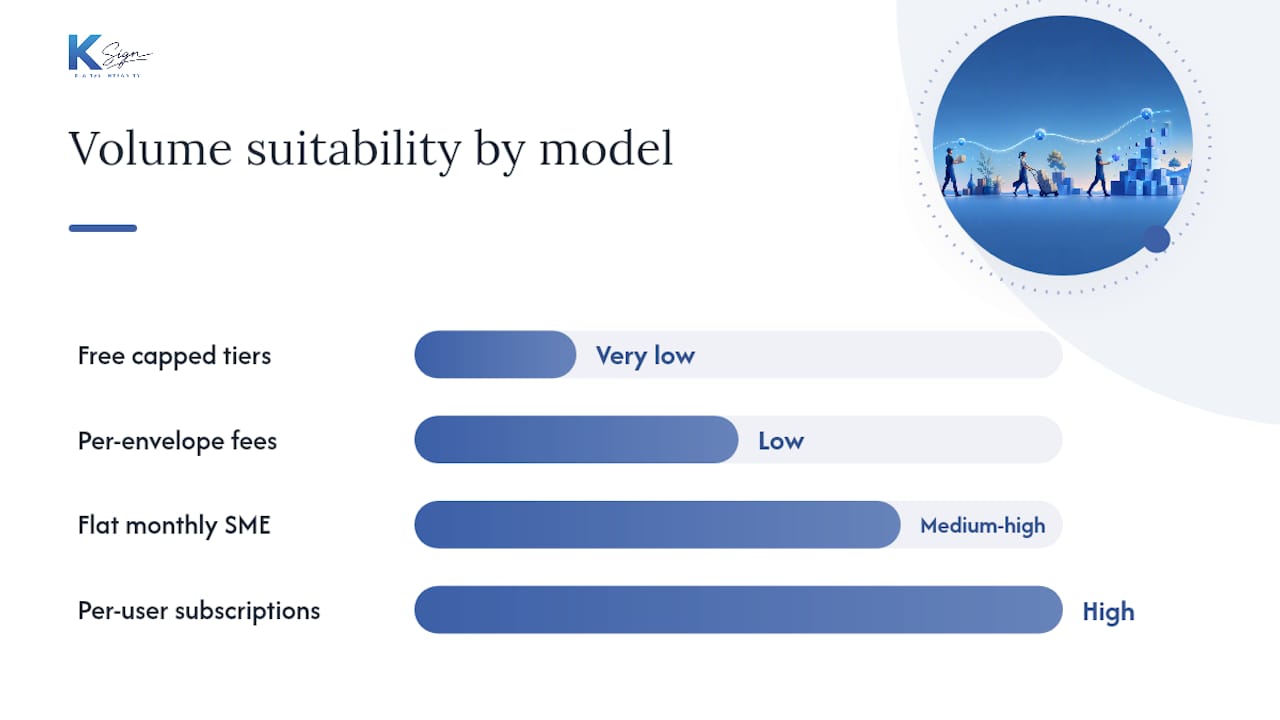
Casual users sending the occasional personal document can usually get by on a free tier. Small businesses sending contracts weekly tend to outgrow free plans quickly and land on a flat-fee SME plan, which is generally more predictable than paying per envelope once volume climbs. Growth-stage teams that need API access, advanced authentication, or CRM integration usually move onto higher tiers where those features are unlocked.
When comparing true cost, check whether mobile-specific features (templates, offline signing, camera import) are included at your plan level or gated behind an upgrade, and whether payment collection is bundled or charged as a separate transaction fee.
Watch for these hidden costs before you commit:
- Storage limits that force a paid upgrade once you’ve stored more than a set number of documents.
- Advanced authentication (SMS, ID verification) sold as a separate add-on.
- Integration or setup fees for connecting to your existing accounting or CRM software.
How does a mobile-first workflow actually work for a small business?
The strongest version of this workflow doesn’t start with a document at all, it starts with a form. A customer fills in a short guided form on their phone, that data auto-generates a contract or quote, the customer signs it on the spot, and a deposit or payment is collected before the app closes. The signed agreement, along with its full audit trail, gets stored automatically. This is the shape Ksign builds around, and it removes several manual steps that traditional e-signature tools still leave to you.
Small businesses see the clearest gains in a handful of recurring scenarios:
- Quote approval — a customer approves a quote and pays a deposit in the same five minutes, rather than a contract landing in their inbox to gather dust.
- Completion sign-offs — a client signs off on finished work on-site, with photo evidence attached to the record.
- Variation approvals — a builder gets a scope change approved and paid for before continuing work, avoiding disputes later.
- Recurring service confirmations — a cleaning or maintenance business locks in the next visit and payment in one motion.
Picture an electrician finishing a quote on-site. Instead of emailing a PDF and waiting days for a reply, they open Ksign’s mobile signing feature, the customer fills in a short form confirming the job scope, the quote auto-generates, the customer signs on the electrician’s phone, and a deposit is charged before the van leaves the driveway. Builders managing contract variations can follow a similar pattern using a dedicated variation approval workflow, and businesses handling final sign-offs can look at how practical completion gets handled electronically.
Pro Tip: When onboarding field staff, standardise one template per document type before you roll out the app team-wide. Letting each worker build their own version defeats the purpose of having repeatable workflows.
When is mobile signing the right call?
Mobile-first signing earns its place for quick approvals, on-site jobs, and repeatable small-business paperwork, quotes, waivers, deposit confirmations, completion sign-offs. It’s less suited to heavily negotiated, multi-party contracts with extended redlining, where the back-and-forth benefits from a desktop workflow and, often, legal review alongside it. If a deal involves several rounds of contract amendments before anyone signs, move it to a desktop-based platform once negotiation starts, then bring it back to mobile for the final signature.
Sign, send, and get paid without leaving the job site
There are other ways to handle this: your phone’s built-in Markup tool for a single quick signature, or a generic e-signature app that only handles the signing step and leaves you to chase payment separately. Ksign closes that gap by combining the guided form, the auto-generated contract, the signature, and the payment into one mobile flow, so a quote gets approved and a deposit gets collected in the same few minutes, on-site, without switching apps.
That matters most for trades and field service businesses juggling multiple jobs a day, where chasing a signed contract by email costs you actual cashflow. If web forms or booking pages feed into your signing workflow, a partner like Wexla Websites can help home-service businesses build the front-end forms that connect straight into that process. Explore Ksign’s e-signature solution and see how the form-to-payment flow fits your next job.
Sources
- Fill out forms, sign documents, and create signatures iPhone - Apple Support
- How to Sign Documents Using Your iPhone or Android Phone - CNET
- Creating an eSignature on iOS, Android, and Desktop | IT@UMN
- Google is quietly fixing how Android handles signing documents and it’s about time - PhoneArena
- Ftc